Chapters
- 1What is EmbroideryTrace?
- 2Create an account
- 3Sign in
- 4Upload your image
- 5Separate colours
- 6Use Trace
- 7Meet the Stitch Editor
- 8Choose a stitch type
- 9Set satin
- 10Edit shapes
- 11Save and reopen your design
- 12Pick your hoop
- 13Preview your design
- 14Export and stitch on your machine
- 15Free Plan and Pro
- 16Credits
- 17If something looks wrong
- 18FAQ
- 19Get help
Always preview before you download. In Export Embroidery, move from Format & Size to Preview & Export by clicking Next — Preview & export →.
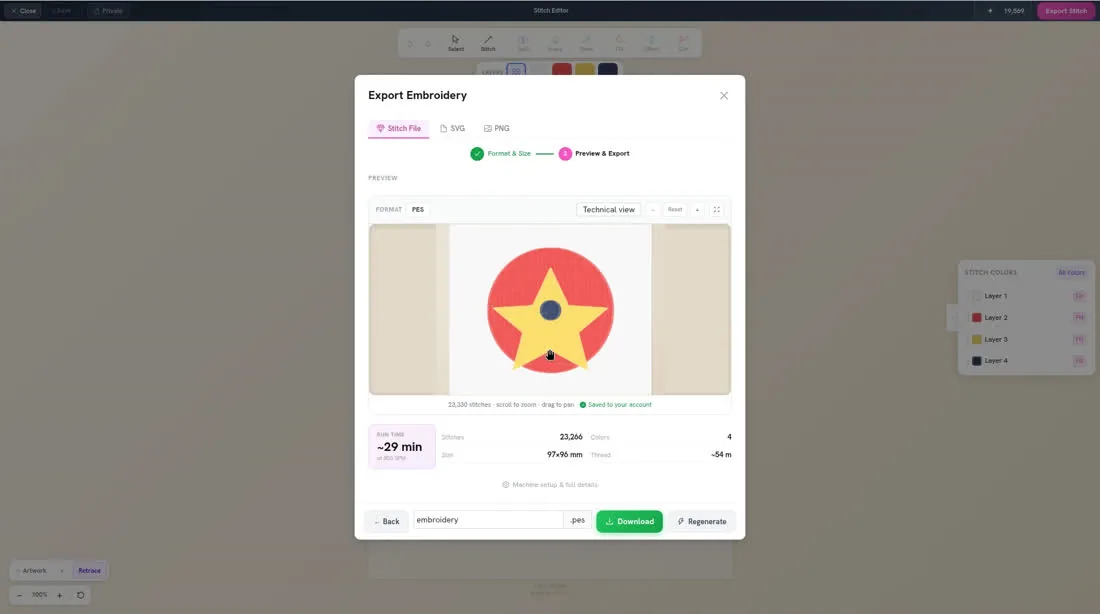
Click Generate Stitch File. This usually takes under a minute; complex designs can take several minutes. The preview then shows RUN TIME, Stitches, Colors, Size, and Thread.
To preview your design
- 1
Click Export Stitch, set your Machine format and Hoop size preset, then click Next — Preview & export →. Click Generate Stitch File and wait for the preview.
- 2
Check RUN TIME, Stitches, Colors, Size, and Thread.
- 3
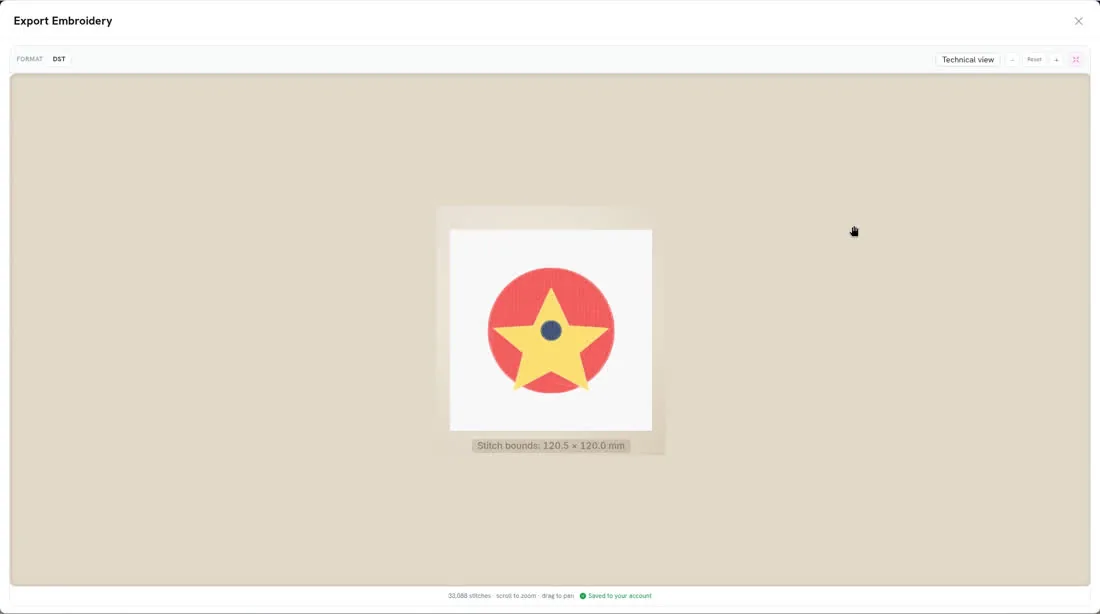
Click the fullscreen button if you want a closer look, then close it when you are done.